Add a Message Template
To access the window for adding a new message template follow the steps:
-
Open the window for sending new message.
-
Click the Template button.
-
In the Message templates window click New.
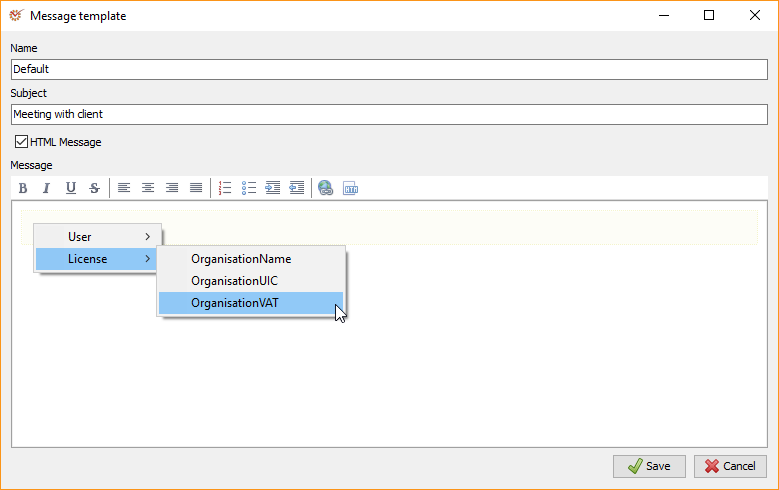
- You can fill in the following fields:
- Name - the name of the template
- Subject - the subject of the message
- HTML Message - define whether the message's format will be HTML
or plain text. If you mark the option, the HTML
Editor will be used for editing the content. - Message - the body of the message
Tip
If you name a template as Default, when you open a new message its
content will be loaded in this template. You can use different default
templates for different languages by adding the two-letter code of the
respective country after its name, e.g. Default.EN and
Default.BG.
-
If you wish you can right click within the Subject and
Message fields to open the context menu and use its
parameters. -
Click
 Save.
Edit a Message Template
The window for editing message templates is identical with the one for
adding new templates. To access it, follow the steps:
-
Open the window for sending new message.
-
Click the Template button.
-
In the Template section select the template that you want to edit and
click Edit.
-
Edit the template. If you wish you can right click in the Subject
and Message fields to open the context menu. It
gives access to parameters which can be filled in. -
Click
Save.