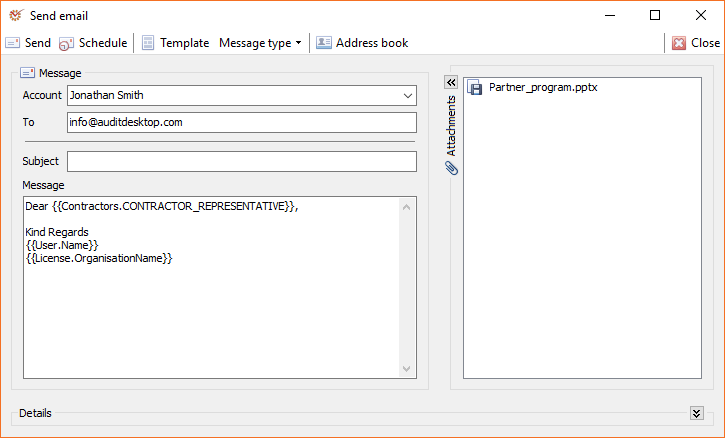
You can send messages from different locations in the program. To access
the Send email window, click the
 New message button.
Buttons
The active window buttons enable you to do the actions:
- Send - send your message
 Schedule -
schedule a message to be sent later Template
- open the message template window- Message type - whether the message will be in HTML format or
plain text. When the former option is checked, the HTML
Editor will be used for editing the message body.  Address book -
open the mail contacts
Fields
The following fields are filled in:
- Account - select the E-mail account from which the message will
be sent - To - enter the recipient's E-mail address (may be more than one)
- Subject - enter the subject of your message
- Message - enter the body of your message
Info
When sending a message, you can open the context menu of
its Subject and Message fields in order to fill in various
parameters.
Attached files
The  Attachments section can be
expanded or collapsed through the 
button.
If you want to rename an attachment, select it and press the F2 key
on the keyboard.
Right click in the field to open the context menu which
gives access to the following actions:
 Attach file - attach a
file from the file system Delete - delete the
selected file
Attached files can be two types, displayed by different icons:
 - files generated by the
system, such as report results, working papers, etc. - files attached from the
file system
Details
The section displays information about all queued
messages intended to be sent later.