The window where Statement of financial position items are entered can
be accessed in two ways:
- Open the Audit tab → Click the Audit approach button → Open
the Statement of financial position items system element - Open the Statements tab → Click the Statement of financial
position button → Click
 Nomenclature
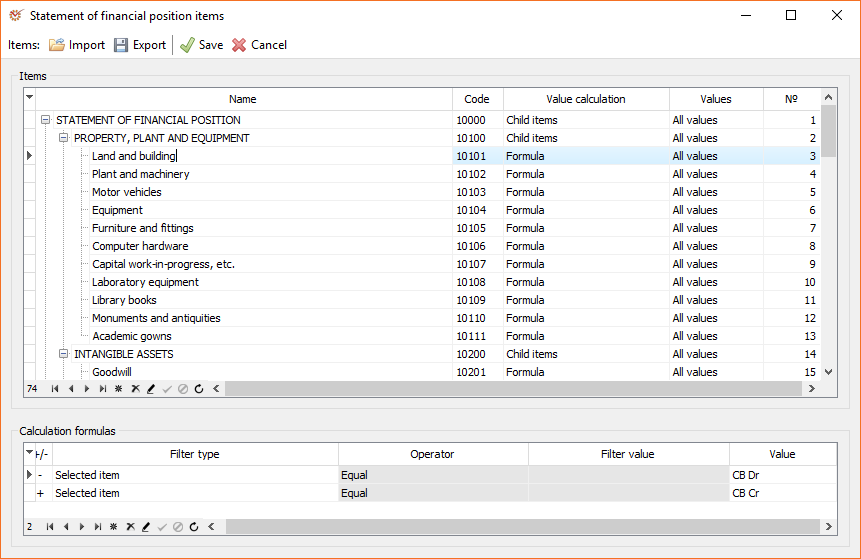
Items
- Name - the name of the item
- Code - the code of the item used for the calculation
of Financial indicatorsand Materiality
indicators - Value calculation - the model by which the item value will be
calculated. When calculating the item value, the program always adds
the corrections which were entered in Statement of financial
position. The valid values are:- No calculation - only the corrected value is used
- Child items - the sum of all child items is used
- Formula - the formula which was set up is used
- Formula and child items - the sum of the child items and the
value of the selected formula is used
- Values - specifies when to display the calculated value:
- Only negative values - only the negative value is used. If
the calculated value is positive, it will be displayed as
0. - All values - all values will be displayed, regardless of
their sign - Only positive values - only the positive value is used. If
the calculated value is negative, it will be displayed as 0.
- Only negative values - only the negative value is used. If
- **№ **- the serial number that indicates the order of items. Every
time you save the setting, the numbering will be updated.
Calculation Formulas
This section is filled in when a selected item is calculated by a
formula. The available columns are:
- +/- the column is filled in depending on whether the sum
received for the row will be added or subtracted when calculating
the item value - Filter type - specifies how to apply the calculation data
- Selected item - selects all accounts associated with the
item (when mappings are set up in the Chart of
accounts) - Account code - selects specific accounts, depending on the
settings in the Operator and Filter value columns - Item code - selects Income statement items, whose accounts
will be used during calculation, by their code - FS item code - selects Financial statement items, whose
accounts will be used during calculation, by their code - Entered item value - only manually added values in the Add
to calculated value column when editing the Statement of
financial position
- Selected item - selects all accounts associated with the
- Operator - defines under what condition the calculation formula
will be applied: Equal, Not equal, Is like, Not like - Filter value - enter the value that will be used when the
Operator is applied. When the Is like operator is used, the
symbol % can be used as a wildcard character for random symbols:
For example: 10% will mean everything that begins with **10
**
- Value - select the desired column in the Trial balance
Import and Export
AuditDesktop enables you to transfer item settings from one audit
engagement to another. The data is saved in an XML file format. To
do so, use the Import and Export buttons.
When loading new settings, if the program finds an old item whose
Code is identical to some of the new ones, it will update this item
in accordance with the new settings (Name, Location,
Formulas), but at the same time, the program will preserve all its
connections (Materiality, Risks, Control
activities, Dependencies, etc.).
Note
Items not found in the new settings are transferred at the end of the
list as child items to the Not found item created by the program.
Their deletion is left to the user.
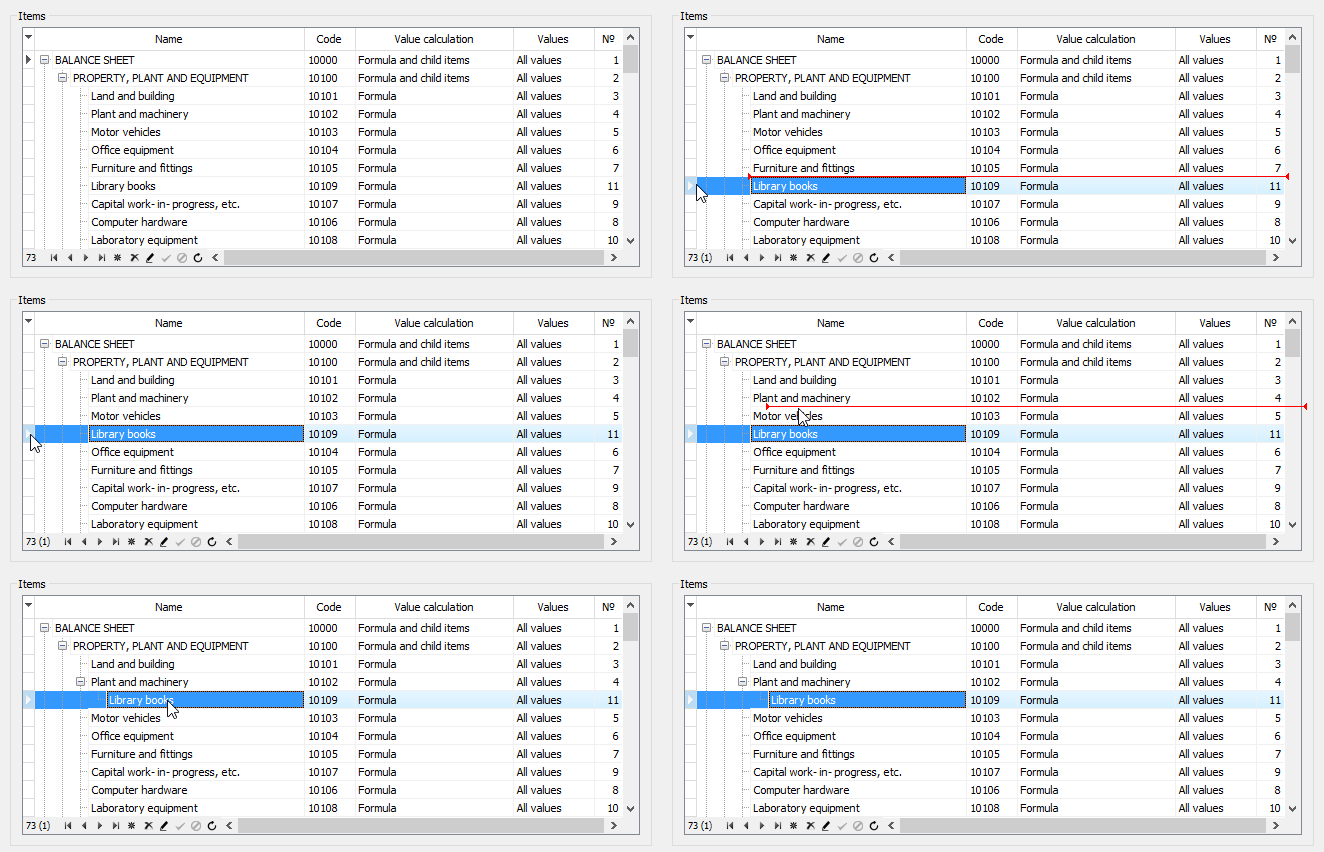
Item Arrangement
To arrange or reorder items, perform the steps:
- Click on the table's indicator to select the record.
- Hold the mouse button pressed down and drag the record to the
desired position. - When you reach the position, release the mouse button.
To make changes in the hierarchy of elements, move the cursor to the
right or to the left, depending on whether the item that you are moving
will be a neighbour or a child element.
Note
To insert a new item, click the Insert record button located in the
data navigation bar.