The Items and Conclusions tabs are specific to the setup of the
Checklist type of working paper.
The buttons give access to these actions:
 Import -
import the Checklist from an Excel file Export - export the
Checklist to an Excel file Add - add a new question
or sub-question Delete - delete the
selected question or sub-question Paste - paste copied data
Tip
If you want to use this format, you can first export a Checklist
containing several questions to an Excel file, to see how its data will
be organised into Excel columns and cells.
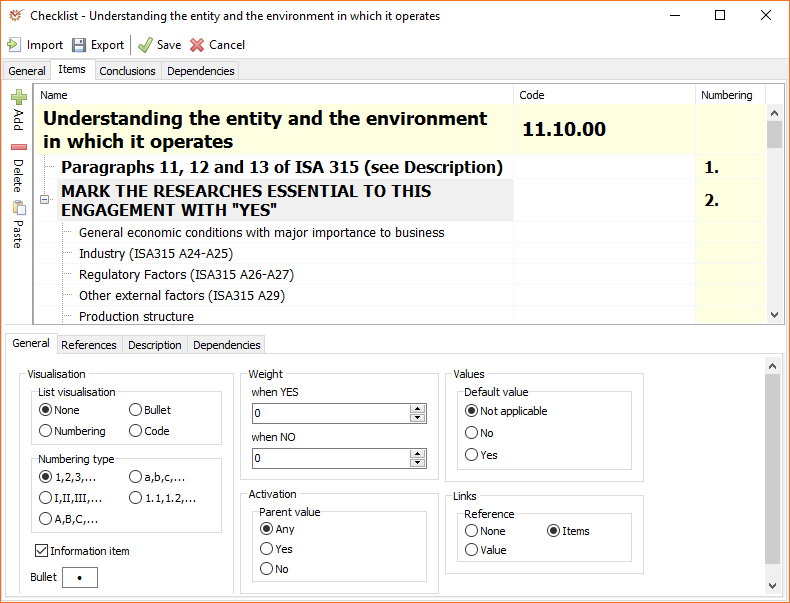
Items
This tab shows the Name, Code and Numbering columns of
items. To edit an item, double click on it to open the Edit text
window, or select it and press the F2 key on the keyboard.
General
- Visualisation - whether the questions will be bulleted,
numbered, etc. - Numbering type - the numbering type that will be used
- Weight - define the weight to each question on the basis of its
Yes/No answers - Activation - show or hide the question depending on whether the
parent question is answered with Yes/No/Any. - Values - whether the question will be answered by default with
Yes/No/Not applicable - Links - activate or deactivate the option to add references to
the selected question - Information item - only for the purpose of grouping (used for
titles, topic sentences, or sections that do not require any
answers) - Bullet - select the preferred bulleting symbol
References
- Add - add a new reference
file - Remove - remove an
existing reference file
To select when a reference will be active, right click on it to open its
context menu. For the Active on option select one of
the following: Always/Yes/No.
You can also mark the selected reference as Read only or
Read/Write.
Description
Add a short description of or instruction for the selected item.
Dependencies
You can set up the activation of specific elements in accordance with
predefined dependencies.
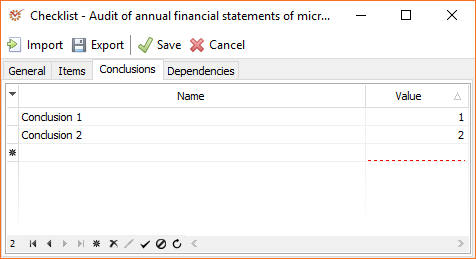
Conclusions
Add conclusions so that they appear as ready-to-use messages during
automatic evaluation of the Checklist. Depending on the answers given in
work on active engagement, AudiDesktop will
sum up the answers to each question in accordance with its predefined
weight. If the border value of a conclusion is exceeded, a message will
appear in the respective working paper.