To open the User permissions window in AuditDesktop, perform the
steps:
-
Open the Settings tab and click Employees.
-
Open the User accounts tab and click Admin login to switch to
administrative mode. -
Enter with the SYSDBA username and the respective password.
-
Click the
 Permissions
button.
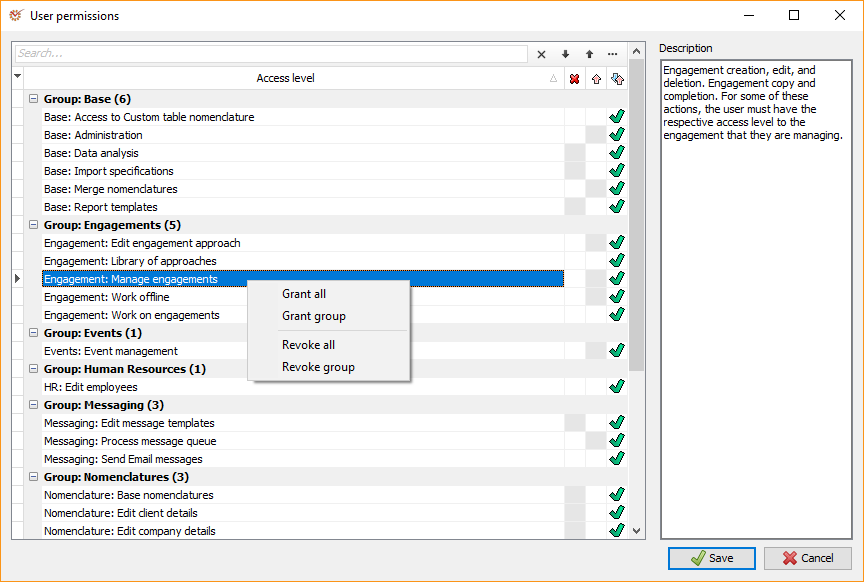
- You can now set the access permissions for each user. When you select
an access level, a short description of it will appear in the
Description section.
There are three user permission levels:
 No access - the user does
not have access to the function Read-only access - the
user has read-only access Read-and-write access -
the user has full access to the function
Tip
Inapplicable access levels are coloured in grey. User permissions can be
assigned only by the database system administrator SYSDBA.
- If you right click in the table, you will open a context
menu with the following options:
- Grant all - gives access permission to all levels
- Grant group - gives access permission to the group that you have
clicked in - Revoke all - revokes access permission to all levels
- Revoke group - revokes access permission to the group that you
have clicked in
- When you are ready, click
 Save.
Available User Access Levels
NAME
DESCRIPTION
Base
Base: Administration
Administrator actions - changing parameters, clearing settings, etc.
Base: Custom tables
Access to custom table nomenclature.
Base: Data analysis
Access to the OLAP component nomenclature settings.
Base: Import specifications
Access to data import specification nomenclature.
Base: Merge nomenclatures
Access to merging nomenclatures.
Base: Report templates
Access to report template nomenclature.
Engagements
Engagement: Edit engagement approach
Edit active engagement approach. As in ''Work on engagement'',
respective access must be given to specific engagements.
Engagement: Library of approaches
Access to the Library of approaches used in engagement creation.
Engagement: Manage engagements
Engagement creation, editing, and deletion. Engagement copy and
completion. For some of these actions, the user must have the respective
access level to the engagement that they are managing.
Engagement: Work offline
Access to work in offline mode.
Engagement: Work on engagements
Work on engagements. This access level is necessary so that a given user
has access to engagements, but they also need to be added to the
respective engagement team.
Events
Events: Event management
Access to the event and meeting management module.
**Human Resources
**
HR: Edit employees
Access to the employee management module.
Messaging
Messaging: Edit message templates
Access to message template module.
Messaging: Process message queue
Process message queue (needed for Messaging Service).
Messaging: Send e-mail messages
Access to the send e-mail module.
Nomenclatures
Nomenclature: Base nomenclatures
Base nomenclature editing.
Nomenclature: Edit company details
Company data nomenclature editing.
Nomenclature: Edit client details
Client data nomenclature editing.
Planning
Planning: Strategic planning
Access to the strategic and annual planning module.
Tasks
Tasks: Task management
Access to the task management module.
Tasks: View client tasks
Access to all tasks of a selected client, regardless of who creates them
or whom they are assigned to.
Timesheet
Timesheet: All timesheet reports
Access to the timesheet reports of all users.
Timesheet: Enter timesheets
Access to the time recording module (timesheets).
Timesheet: Leading projects timesheet reports
Access to current user leading projects timesheet reports.
Timesheet: Office colleagues' timesheet reports
Access to current user office colleagues' timesheet reports.
Timesheet: Office clients' timesheet reports
Access to current user office clients' timesheet reports.
Timesheet: Timesheet invoicing
Invoiced timesheets marking.