Fetch Data
-
Once you have performed all preparatory steps for offline
work, open the Home tab and click
 Fetch.
-
The window that opens includes several predefined filters.
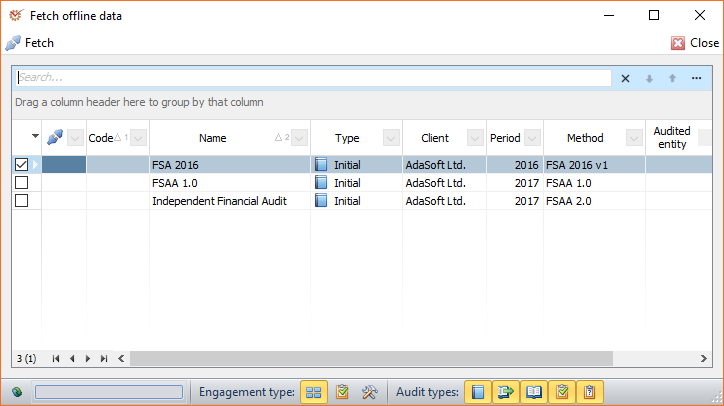
- Engagement type - only one filter can be active at any time:
 All - displays all
engagements, regardless of their type Audits - displays only
the audits Projects - displays
only the projects
- Audit types - one, several, or all filters can be active at
once:- Initial
 Subsequent
 Intermediate
- Follow-up
 Other
Tip
To find engagements quickly and easily, you can use the field Search
-
Mark the engagement that you will work on and click
 Fetch. You can mark more than
one engagement. -
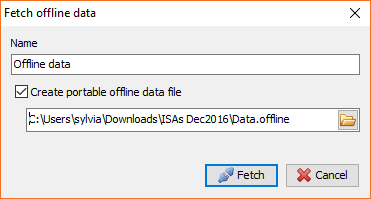
Enter the Name of the offline data. If you want to save the
offline data to a portable file, check the Create portable offline
data file option and select the file from the drop-down menu.
ClickFetch.
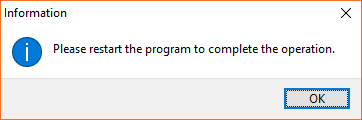
- When the operation is complete, restart the program so that you can
work with the fetched data. In the Login window, the Database
field will be set to Online
database by default.
From the drop-down menu, select the offline database that you have
already created. Enter your username and click Login
(when in offline mode, passwords are not obligatory).
- Once the data is loaded, restart the program. You can now enter the
offline database and start working on your engagement(s) in offline
mode.
Prepare for Return
Note
In order for the program to execute the return data operation, you must
be reconnected to the Internet.
- Once you are done, you can prepare the data for return. Open the
Home tab and click
Prepare for
return. The Prepare for return data window is identical to the
Fetch offline data one.
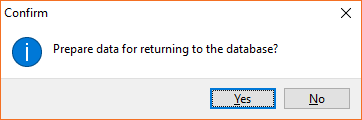
Mark the engagement(s) that you are preparing for return and click
Prepare. In the window that
opens, click Yes.
- To return the offline data immediately, restart the program. In case
you want to return it later on, do not restart.
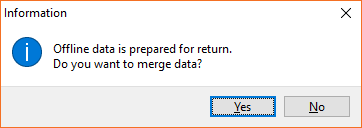
- Enter the online database. The program will ask whether to merge the
offline data prepared for return or not. If you wish not to merge it,
you will have to do it manually later on. If you want to merge the
offline data, click Yes.