- From your current position in the program, click
 Print.
Note
There are several positions in AuditDesktop from which the
Print button does
not open the window shown below, but a window for print setup. Such
positions are Events, the built-in
Spreadsheet, the Analysis tab in
Timesheets, and a few more.
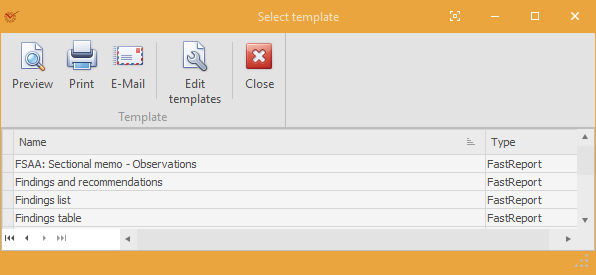
 Preview – opens the window
for template preview Print – opens the window
for print setup E-Mail – opens the window
for sending messages. The template will be
attached to your message as a PDF file.
- To enter in edit mode, click Edit templates. If you want to edit
a system template (shown in grey), you must copy it and then edit the
template-copy. System templates cannot be deleted.
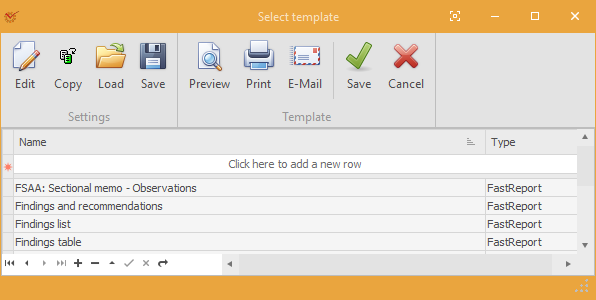
The following buttons become active:
 Edit – edit the selected
template Copy – copy the selected
template Load – load the template
from a file on your local computer Save – save the template
in a file on your local computer
- When you are ready, click one of the buttons:
 Save – save
the changes made Cancel – discard all
changes made after the window was opened