Fetch Data
- Before you begin working in offline mode, you must perform several
preparatory steps.
Note
If you want users to be able to fetch data for offline work, you must
assign them ''Engagement: Edit engagement approach'' access
level. Also, they must have the access rights
to edit the approach of the engagements that they will work on offline.
- Open the Home tab and click the
 Fetch button.

-
Mark the engagement that you want to work on offline and click the
 Fetch button. You
can mark more than one engagement. -
Enter the Name of the offline data in the dialog window. If you
want to save the data to a portable file, check the Create portable
offline data file option and select the file from the drop-down
menu. The creation of a portable file allows your assistants to work
with the engagement's data without necessarily having access level to
edit engagement's method.
ClickFetch.
Info
The next few steps can be performed even if you are not connected to the
server.
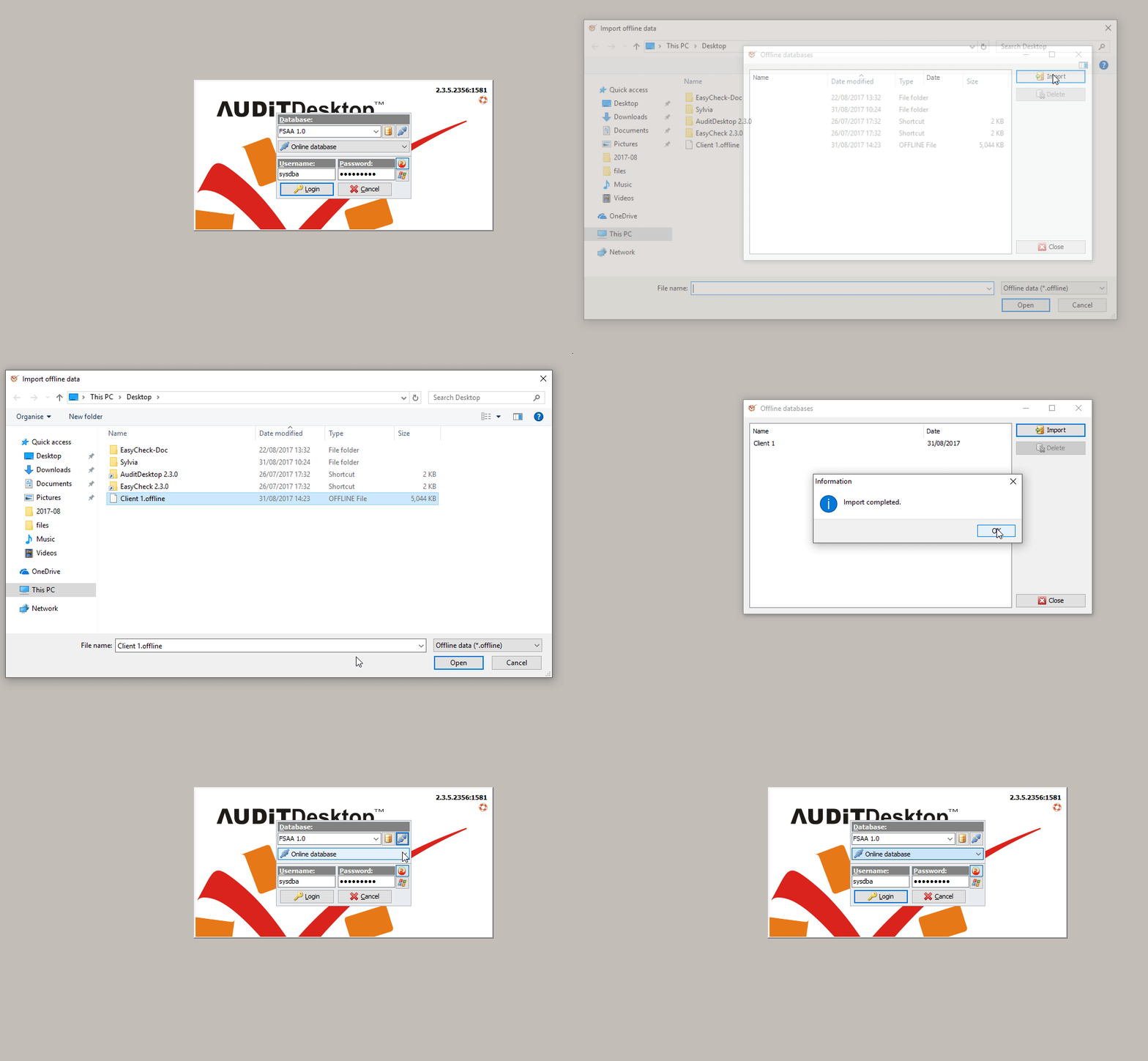
- Restart the program. If you have received the data on a portable
file, import the data in order to work with
it. If the data is not saved on a portable file, login directly in the
offline database created by you.
-
In the Login window, the Database field will be set to
 Online database
by default. From the drop-down menu, select the offline database that
you have created. Enter your username and click Login (when in
offline mode, passwords are not obligatory). -
Once the data is loaded, restart the program. You can now enter the
offline database that you created and start working on your
engagement(s) in offline mode.
Prepare Data for Return
-
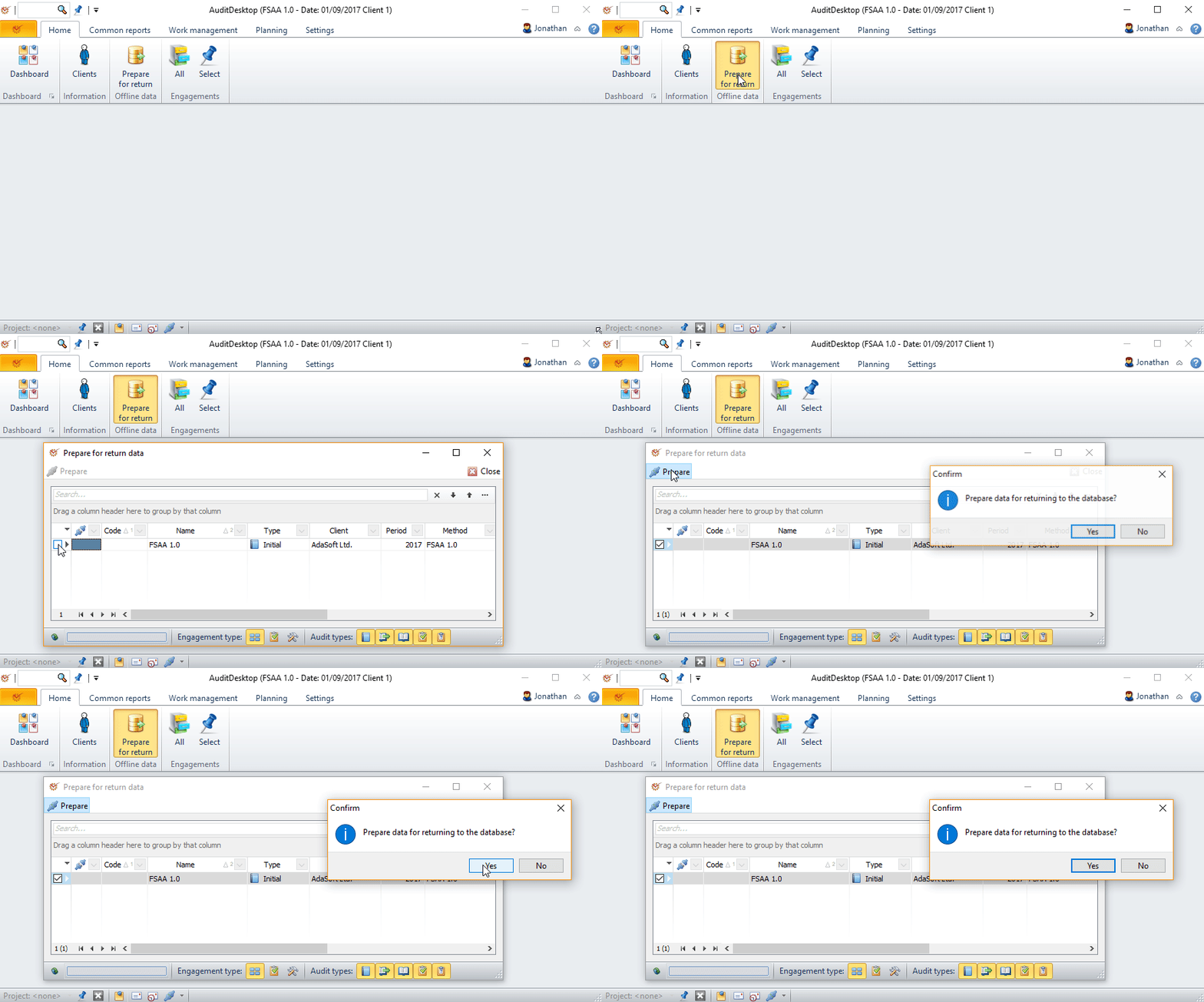
When you have completed your offline work, open the Home tab and
click thePrepare
for return button. -
Mark the engagement that you want to prepare for return and click the
Prepare button.
In the window that opens, click Yes.
- If you want to return the data immediately, restart the program. If
you want to return the data later, do not restart.
Return Data
Note
In order for the program to execute the next steps, you must be
connected to the server.
-
After restarting, enter the online database. The program will ask
whether you want to merge the data prepared for return. If you don't
want to merge it, you will have to do it manually later on. In case you
want to merge, click Yes. -
In the window that opens, mark the offline data that you wish to
return and click the
 Return button.
-
The program will ask you to confirm the return data operation. Click
Yes.
Warning
Once returned, the engagement's data must not be prepared and returned
again. If it is necessary to do so, delete the previous offline data and
fetch it anew.