AuditDesktop supports work with Project plan which enables you to
view and work directly on the created tasks. To access the Project
plan window:
-
Open the Audit tab and click Plan.
-
When creating the engagement plan for the first time, the program
will ask you for confirmation:
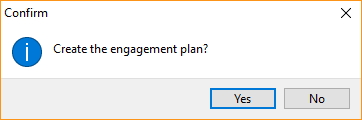
- Click Yes to open the engagement plan
- Click No to open the Project plan template distributed with the
program
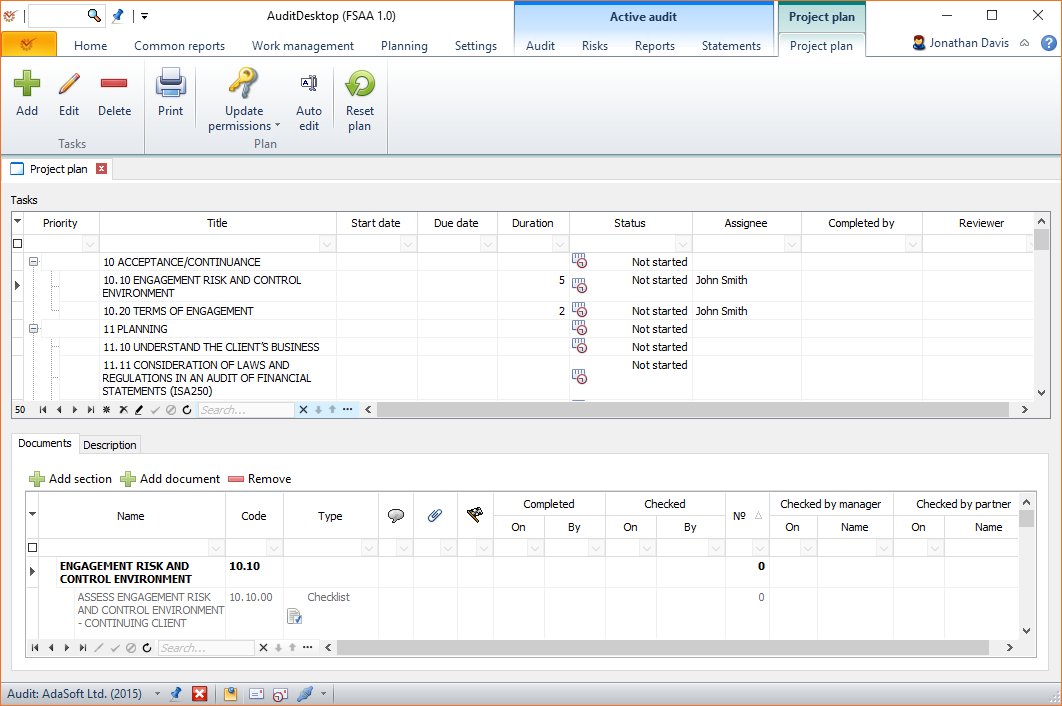
- You can now add, edit, delete, etc. tasks by using the available
buttons:
- Add - add a new task
- Edit - edit an already existing task
- Delete - delete a selected task
 Print - open the window
for preview and printing templates Update permissions -
select user permissions and whether they
will apply for the following options:- Selected task(s) - the assignee is granted access to
selected task(s) - Entire plan - the assignee is granted access to the entire
engagement plan
- Selected task(s) - the assignee is granted access to
 Auto edit - enter edit
mode for the task without having to click the Edit record button Reset plan - reset the
plan and open a new one
Tasks
The section shows detailed information about each created task in the
project plan, in terms of its Priority, Start and Due dates,
Status, Assignee, etc.
If you right click on a task, you will open its context
menu through which you can add a new task as well as edit
and delete an already existing one.
Documents
The tab includes all working papers that are activated
for the selected task. You can open and start working on each working
paper directly from here. The buttons give access to the actions:
- Add section - add section to the selected working paper
- Add document - add a working paper to an already existing one
- Remove - remove the selected working paper
If you right click on the working paper, you will open its context
menu.
Description
The tab displays the description of each selected task (if available).