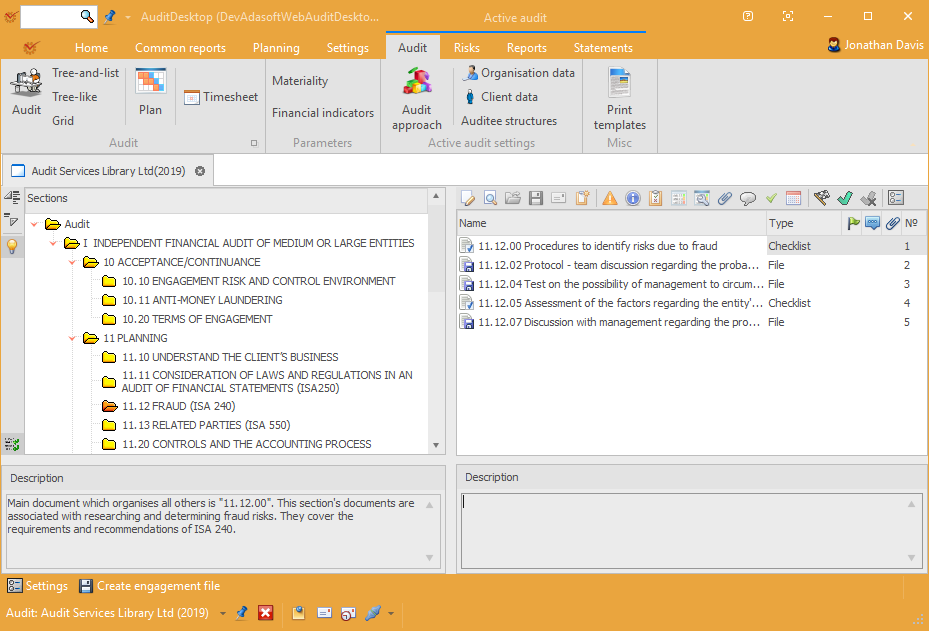
In Active audit, open the Audit tab and click the Audit button.
The window enables you to work on an audit engagement by carrying out
the stages of engagement research, planning, testing, and completion in
accordance with the selected methodology. You can document the complete
audit process, following all necessary methodology procedures.
Depending on the selected methodology, AuditDesktop offers ready-to-use
templates and checklists for determining vulnerabilities. You can
complement and correct all methodology sections at your discretion. The
procedures that are not applicable in an engagement will not be
performed and the Checklist questions that do not concern the client
will be marked as Not applicable.
Each audit engagement file consists of sections and their working
papers. You can select between three different view
modes:
- Tree-and-list – sections are displayed as a tree with child
nodes. If you click on a section, a list of its working papers will
be displayed in the right side of the screen. - Tree-like – sections and their working papers are displayed as a
tree with child nodes. - Grid – the data is displayed as a table. This view mode is more
detailed but it takes more time to load all data.
Tip
You can access the engagement file and its view modes at the bottom of
the screen. Click on the name of the engagement to open it. Click
 and choose the view
mode from the drop-down menu.
You can use the  button to expand
sections and their elements, and the
 button to contract them. The
buttons are available in all three view modes.
Using the  Filter field you can
filter all working papers' names, thus finding the needed document more
quickly.
Toolbar
The toolbar includes the following buttons:
-
 Edit – open the working
paper for editing. To enter in edit text mode, click
 Edit.
-
 Preview – open the
working paper for print preview -
 Load from file – load
data from file -
 Save to file – save the
working paper as a file -
 Send email –
open the window for sending messages. Currently active
only for File and Questionnaire. -
 Create task – open the
window for new task creation -
 Adjustments – show the
adjustments to the working paper -
 Information – information
connected with the working paper -
 Findings – open the
Findings and recommendations window -
 Identified risks – open
the window where you can enter identified
risks -
 Control activities – open
the window where you can enter control
activities -
 Attached files – show all
attached files -
 Comment – show all added
comments -
 Tickmarks –
open the window for managing tickmarks -
 Timesheet – open the
window where a timesheet can be added -
 Completed – show that the
working paper is completed -
 Uncompleted – show that
the working paper is not completed -
 Checked – show that the
working paper is checked -
 Not checked – show that
the working paper is not checked -
 General settings –
information about the working paper's completion and
check -
 Edit structure – open the
window for editing the settings of working papers'
parameters -
 Description panel –
description of the engagement file's sections and their elements -
 Show hidden documents –
show all working papers marked as Invisible
Context Menu
Context Menu: Section
To open a section's context menu, right click in the
section or within the blank space of the document.
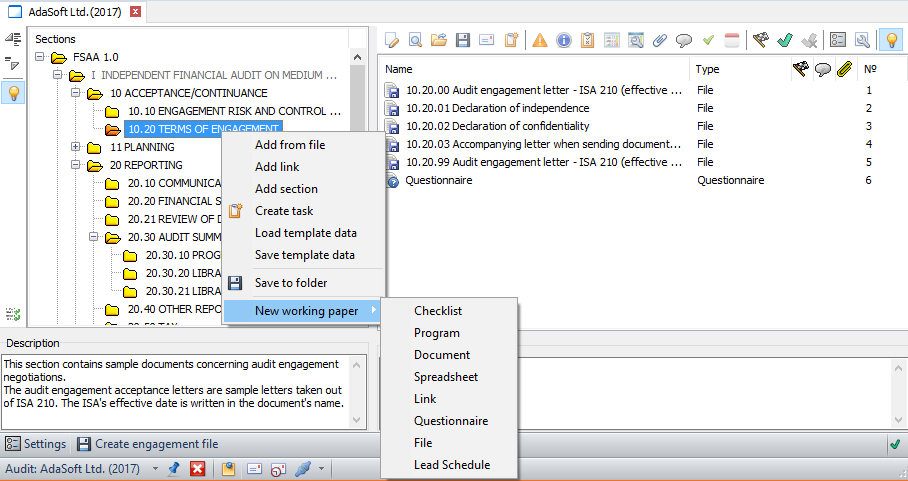
The section's context menu gives access to the following actions:
- Add from file – add a new working paper type File
- Add link – add a new working paper type Link
- Add section – add a new section to the engagement file
- Create task – open the
window for new task creation and attach the
section to it - Load template data – load data from parametrised documents
- Save template data – save data to parametrised documents
- Save to folder – save the
section and its subsections in a folder on your local computer - New working paper – open the list of working
papers:
Checklist, Program, Document,
Spreadsheet, Link,
Questionnaire, File, Lead
Schedule
Context Menu: Working Paper
To open a working paper's context menu, right click on
it.
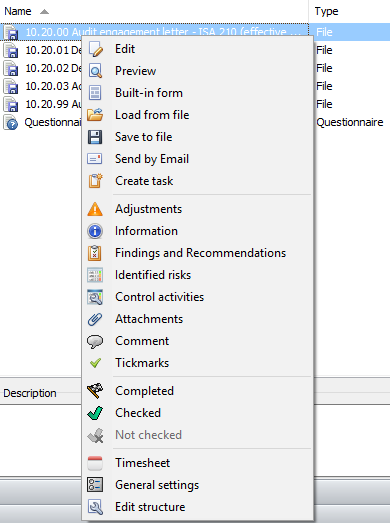
Most actions duplicate the actions that are accessed through the toolbar
buttons. The additional options are:
- For File and Questionnaire:
- Send by
E-Mail – open the window for sending messages.
The working paper will be included as an attached file.
- For File and Lead Schedule:
 Built-in form – open a
built-in program form that displays all context menu parameters
such as attached files, adjustments, information, etc.
- For Link:
- Load template data – load data from parametrised documents
- Save template data – save data to parametrised documents
- Settings
– you can manage the users' access rights, and the visibility of
sections and their elements  Create engagement file –
you can save the engagement file in a folder in the form of files
which can be opened without using the program