The All engagements window displays all engagements of a selected
client. Access to the window is controlled by user
permission level Engagement: Manage
engagements.
The program shows the engagements in different colours: completed
engagements are coloured in green, projects are in blue, and planned
audits in grey.
The window has two available view modes:
Full View
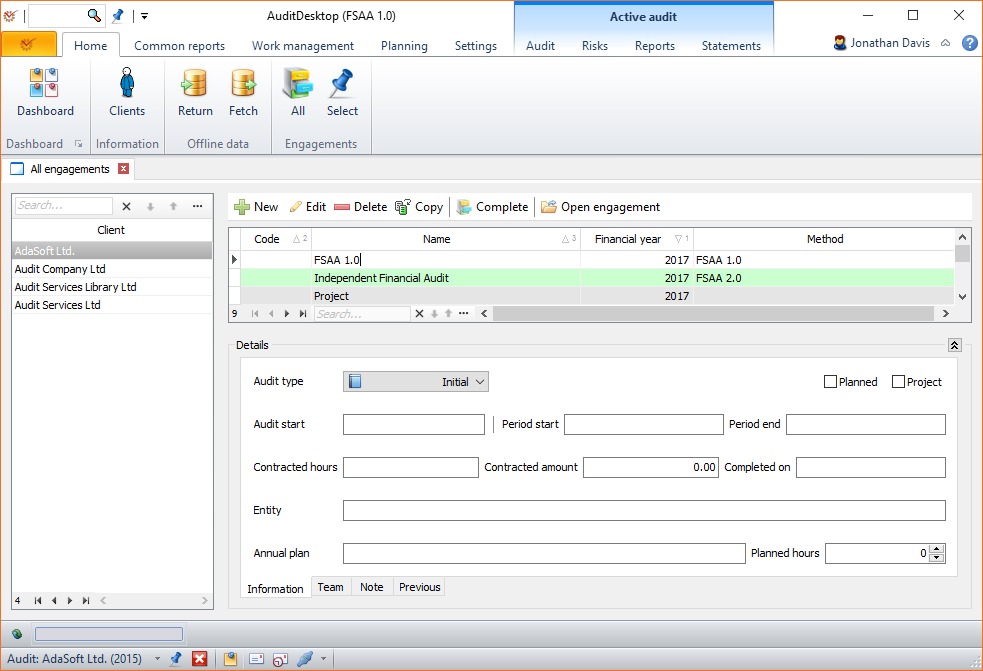
Clients are displayed on the left side of the screen. When you mark a
client, all engagements connected with the selected client are shown on
the right.
To access the full view, open the Home tab and click the All
button.
Contracted View
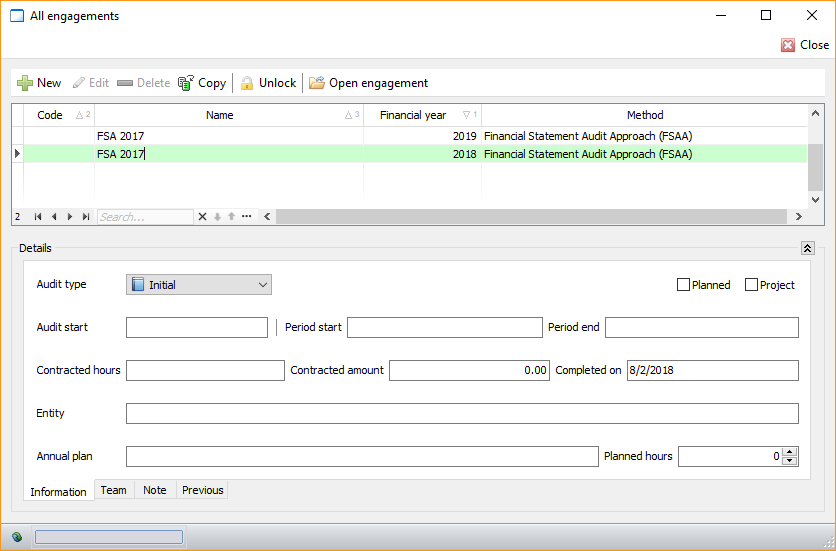
The program shows only the engagements of a specific client. To access
the view, choose one of the following ways:
-
Open the Home tab and click the Clients button.
-
Make a right click on the selected client and from the context
menu select Engagements.
or
-
Open the Home tab and click the Clients button.
-
Make a right click on a client and from the context menu select
Details. -
In the window that opens, click the
 Actions button.
Select the Engagements option.
Buttons
The buttons allow the following actions:
 New - open the window for
creating a new engagement Edit - open the window for
editing an engagement Delete -
delete the selected engagement Copy - make a
copyof the selected engagement Complete - complete an
engagement, with the option to lock it and
create a subsequent one Unlock - unlock a locked
engagement Open engagement - open the
engagement to work on it
Details
Information
The tab shows details for the selected audit engagement in terms of
audit type, contracted amount, period start and end, etc.
Team
Information about the engagement's team.
Note
The tab shows all notes entered for the engagement (if any).
Previous
Data for the previous auditor and previous financial year.